Showing posts with label EdTech. Show all posts

Thursday, August 3, 2017

New Year - Transformative Teaching


Transformative Teaching

What is transformative teaching?  Is it simply putting devices in students hands? Is it simply talking about visiting places that you are studying? Is it saying we are on our device several times a day? What is so transformative about having the device in their hands? Creating a culture for innovation and change involves so much more than surface level thinking and planning.  It is constructivist pedagogy.
Related image
I want to begin this year on a transformative platform and build experiences for students. I want to see students actively engaged. Students need hands-on experiences where they analyze, create, interpret, use background knowledge, etc.., This is the type of learning that we are missing in our classrooms that create a learning culture where students are asking the tough questions of how, who, what, where, when, and why and then actually figuring it out. We need to allow them to solve real-world problems and become thinkers and doers.  Technology comes into play as that tool for transformative teaching.  It allows us to dive deeper in helping us solve our problems but there needs to be a balance.  I'm excited to begin this year and see how transformative teaching can lead to more student success.


Thursday, February 2, 2017

Sketchboard - The endless online whiteboard


In today's world, are you only working from one location?  Or are you working from home, office, co-workers office, coffee shop, etc..,?  Exactly...right?! I know, I read your mind because we always seem to be working from various locations and multi-tasking with students and colleagues.  However, it seems like there is a tool missing to get our point across to others at times.

In the past, local meetings were easy to explain and you received quick feedback with face-to-face interaction.  However, in today's world our remote meetings can sometimes be hard to explain or visualize.  We want to continue to be productive, but we are still somewhat limited with chat applications, screen sharing, and even shared documents.  Our students are also facing these very same issues.  If you are feeling this very same way, then I want to encourage you to give Sketchboard a try!

Sketchboard
If you are looking for collaboration with visual representation for teams, then you need to check out Sketchboard.  It is an endless online whiteboard that has an endless list of possibilities that can work for students and teachers alike.  Are you also a Slack fan? You can also visual message on Slack with Sketchboard.


Check out the YouTube video for a quick overview and some key features.

Can you imagine what your students could create or the productive workflow for remote meetings?


The sketchboard interface has many options to choose from to create your workflow:


Sketchboard Pricing: Click here for more info.

Here are a few examples of the pricing options below: (You can also request educational pricing)
  • Free - Up to 5 Users - 3 private boards - Unlimited public boards
  • Personal: $7/month 1 user
  • Organization: $9/month per user
  • Team: $36/month - 7 users
I hope that you will find this tool helpful in your next collaborative meeting.


Thursday, August 4, 2016

Training for Google Apps - By Google

Have you ever been stuck in Gmail, Google Calendar or Google Classroom and no one was around to help you at the time? Great news!!  Now you have your own personal Google trainer at your fingertips anytime, anywhere.

Google now has added a Google Chrome extension called Training for Google Apps.


This extension is an interactive training and walkthrough within your Google Apps.  This will help train you with apps such as Google Classroom, Gmail, Google+, Calendar, Sheets, Slides, Docs, etc..  This in-app experience allows you to learn while you are in the program. You can also learn more at Google Help Center. Once you install the extension it will show up like this:


You can then click this trainer button at anytime when trainings are available and be instantly trained on a specific task right within the application.  Please see a couple examples below.


Here is another example in Gmail:
If I open Google Drive and click on the Training button:

If I open Google Classroom and click on the training button:
This is a great way to get up and running with any Google Apps!  

Tuesday, May 24, 2016

I am Google Certified

Even though it is 12:43am, I can't sleep because I am so excited and I have to share the news!!

I am an official Google Certified Educator!  Sometimes we deserve a pat on the back from ourselves and that is exactly what happened this afternoon for me.  I kept putting this exam off because I was nervous that I might not know enough to take this exam, even though I felt confident in many areas. I did review the training section in the training center and felt confident.  I signed up and once I logged into the test and noticed the start button, the good ole' test anxiety set in.  However, once I pushed the start button on this exam, I took a deep breath and just treated it like any other day at the office and was confident in myself. Confidence is key! I begin to feel comfortable and relaxed which helped me pass this exam. 

I'm very excited to continue this journey that will lead to my main goal of becoming a Google Innovator.  Being an educator is a personal journey of constantly learning.  Being a Tech Integration Specialist for the past 2 years, I have enjoyed helping others learn new skills and integrate them into classrooms.  I continue to learn better ways to accomplish so many different tasks everyday.  This will only continue to help me grow as an educator to better prepare our teachers/students in the classrooms. 

If you are wondering about the Level 1 exam, my suggestion is to study for your Google Certification.  You need to review the training sessions until you feel comfortable with all areas.  Join us in continuing our education as educators! 

Monday, May 23, 2016

Searching Google Smarter


Have you ever wondered if you were searching Google the correct way or even the smartest way? There are many symbols and words (search operators) you can use to make your searching easier and to narrow down results. This can not only help you but can also really improve your students researching skills.  It is very important that students know how to search the vast array of information on the web in the most efficient way.  


I wanted to share with you some ways that can make your Google searching much easier.

I found all of this info on the 
Google Help Page.

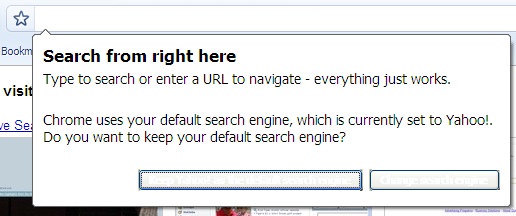
First off, I wanted to discuss the Omnibox (also known as the address bar) which will allow you to search from typing into the box at the top of the browser.  


Start with a simple search and choose your words carefully (Ex: where's the closest McDonald's).  Don't worry about the spelling or capitalization of words (Ex: Texas is the same as texas)  If you are wanting quick information, you can type these 5 keywords in and get instant results.  Info taken from Google Help Page
  • Weather: Search weather to see the weather in your location or add a city name, like weather seattle, to find weather for a certain place
  • Dictionary: Put define in front of any word to see its definition.
  • Calculations: Enter a math equation like 3*9123, or solve complex graphing equations
  • Unit conversions: Enter any conversion, like 3 dollars in euros
  • Sports: Search for the name of your team to see a schedule, game scores and more.
  • Quick facts: Search for the name of a celebrity, location, movie, or song to find related information. 

Below you will find different symbols with examples that you can try the next time you search on Google. Image below found on Google Help Page.

SymbolHow to use it
+
Search for Google+ pages or blood types
Examples: +Chrome or  AB+
@Find social tags
Example: @agoogler
$Find prices
Example: nikon $400
#
Find popular hashtags for trending topics
Example: #throwbackthursday
-When you use a dash before a word or site, it excludes sites with that info from your results. This is useful for words with multiple meanings, like Jaguar the car brand and jaguar the animal.
Examples: jaguar speed -car or pandas -site:wikipedia.org
"When you put a word or phrase in quotes, the results will only include pages with the same words in the same order as the ones inside the quotes. Only use this if you're looking for an exact word or phrase, otherwise you'll exclude many helpful results by mistake.
Example: "imagine all the people"
*Add an asterisk as a placeholder for any unknown or wildcard terms. .
Example: "a * saved is a * earned"
..Separate numbers by two periods without spaces to see results that contain numbers in a range.
Example: camera $50..$100

You can also use certain words (search operators) that can be added to searches to help narrow results.  When searching in Google you can always go to the Advanced Search page to help narrow down results as well.  Please see below for 'Search Operators'- **Image below found on Google Help Page.

OperatorHow to use it
site:Get results from certain sites or domains.
Examples: olympics site:nbc.com and olympics site:.gov
related:Find sites that are similar to a web address you already know.
Example: related:time.com
ORFind pages that might use one of several words.
Example: marathon OR race
info:Get information about a web address, including the cached version of the page, similar pages, and pages that link to the site.
Example: info:google.com
cache:See what a page looks like the last time Google visited the site.
Example: cache:washington.edu
Note: When you search using operators or punctuation marks, don't add any spaces between the operator and your search terms. A search for site:nytimes.com will work, but site: nytimes.com won't.

I hope that you will try these to help you narrow down your next search on Google.

Monday, October 19, 2015

Create Custom Google Search

Create Your "Own" Google Custom Search Engine

Do you have students turning in research papers with unreliable sources?  Are they spending countless hours trying to find sources for their paper?  You can create your own Google Custom Search Engine and have students searching within specific websites that you choose.  This saves time and helps them stay on task.

Where do I begin?

  1. Go to: google.com/cse
  2. Create New Search Engine
  3. In the 'Sites to Search'
    • Add the URL/pages you want to include in your search engine
  4. You can get fancy and add URL patterns
  5. Select the Language you want
  6. Select 'Advanced' if you want to Exclude URLs
  7. Click 'Create'
  8. You can grab the code to embed in a website or the link to share with your students
You can always go back in and edit your search engine (add/delete sites and change any of the above info)

Thursday, June 25, 2015

Motivate 2 Educate


"Get motivated by others and pay it forward by motivating the world!! You never know who is watching!!"- Brooke Hall

When was the last time you felt motivated about teaching?  When was the last time you felt motivated about technology in your classroom?  If you haven't been motivated lately, you need to join in on the motivation happening across the world!!  I have met so many educators so alive and motivated to educate students.  It's very infectious and gets me motivated.  It's happening right here at home in our state of Indiana.

 I am constantly being motivated and encouraged by so many people all over the world through technology and the connections that I continue to make!  I want to challenge and encourage you (educators, parents, students, etc..,) to join social media and build your PLN today.  Allow others to see where your learning lives.  We live in a world where millions of people can connect, share, collaborate, and impact others minute by minute. Remember the things that are possible with technology...
  • Your learning is important and sharing something that you learned today, might just be what someone else is looking for
  • A student's portfolio/resume has no limitation and they could land the career of their dreams
  • A classroom can connect with a another classroom across the world to communicate and learn about and share their culture
  • Take a virtual field trip with your class
  • Collaborate on the same Google Doc for a group project
  • Create opportunities for students that would not be possible without technology
  • Stay connected and up-to-date on the latest tools and resources
  • So many more opportunities just waiting to be explored...

Build your PLN: (Join today)

Go Chrome or Go Home Series

You probably hear many people talking about using Chrome.  Why choose Google Chrome over the other browsers?  I'm sure you wonder what the big deal is and think who cares about what browser you use.

I attended a conference this week and attended a session by +Kyle Pace  called, "Go Chrome or Go Home."  Hence, where my blog series is coming from, thank you Kyle!  I learned many new tools in the session and it reminded why Google Chrome is my go-to browser.  Many people use the web to browse or search and there are some great ways to be a better "searcher."  If you are not using this browser, you are missing out on many opportunities for you and your students.  I would like to start out by talking about simply searching in Google Chrome for the first post in this series.  I will follow up with more posts about: Gmail, Extensions, Apps, Bookmarking, & more!
Google Search:

Get Better at Searching

  1. Search within OmniBox (Combined Search & Address Bar) and save time.

  2. Use Voice Search - If you prefer to talk rather than type.  To activate "OK Google" just head to your browser settings and enable "OK Google" search command.  
    This will allow you to speak into Google Search to find what you are looking for. You can say most of these examples in English, French, German, Italian, Japanese, Korean, Russian, Spanish, and Brazilian Portuguese, but some aren't available in every language.
    When you see the microphone, just say, "Ok Google" and whatever you want to search for, just like you would type it. Google should talk back to your with your answer.
  3. Search within specific site - If you or your students are researching a topic and only want to search a specific site, that is possible. You just need to type that site into Omnibox. Ex: great wall of china site:cnn.com
  4. Learn to use Search Operators and Punctuations to get more specific search results - Find all listed here: https://goo.gl/6aP09x  You will want to type these just as you see in the examples.  This will be typed into the Omnibox or search box.  Here are a few to get you started:
    • #  Find popular hashtags for trending topics Ex: #WeAreSCSD1
    • -  When you use a dash before a word or site, it excludes sites with that info from your results.  This is useful for words with multiple meanings, like Jaguar the car brand and jaguar the animal.  Examples: jaguar speed -car or pandas -site:wikipedia.org
    • "  When you put a word or phrase in quotes, the results will only include pages with the same words in the same order as the ones inside the quotes. Only use this if you're looking for an exact word or phrase, otherwise you'll exclude many helpful results by mistake.  Example: "imagine all the people"
    • link  Find pages that link to a certain page.  Example: link:youtube.com
    • info Get information about a web address, including the cached version of the page, similar pages, and pages that link to the site. Example: info:google.com                                                              
  5. Create Custom Google Search - Visit google.com/cse  You can customize what sites will be used when students are researching topics.  


If you would like to learn more about Google Searching:
http://www.powersearchingwithgoogle.com/

Google Chrome Quick Facts:

  • Browse Chrome on computer, tablet, or mobile device across all devices
  • Sign in to your Google account to SYNC Chrome bookmarks, browsing history, extensions, and settings to your devices.
  • Google Search automatically provides recommendations that appear as you type
  • Access many apps and extensions through Chrome Web Store
  • Sync open tabs, bookmarks, and omnibox data from PC to your phone/tablet with a Google account
  • Browse safely with automatic updates, built-in malware protection, and privacy settings