Showing posts with label Indiana Tech. Show all posts

Thursday, June 25, 2015

Motivate 2 Educate


"Get motivated by others and pay it forward by motivating the world!! You never know who is watching!!"- Brooke Hall

When was the last time you felt motivated about teaching?  When was the last time you felt motivated about technology in your classroom?  If you haven't been motivated lately, you need to join in on the motivation happening across the world!!  I have met so many educators so alive and motivated to educate students.  It's very infectious and gets me motivated.  It's happening right here at home in our state of Indiana.

 I am constantly being motivated and encouraged by so many people all over the world through technology and the connections that I continue to make!  I want to challenge and encourage you (educators, parents, students, etc..,) to join social media and build your PLN today.  Allow others to see where your learning lives.  We live in a world where millions of people can connect, share, collaborate, and impact others minute by minute. Remember the things that are possible with technology...
  • Your learning is important and sharing something that you learned today, might just be what someone else is looking for
  • A student's portfolio/resume has no limitation and they could land the career of their dreams
  • A classroom can connect with a another classroom across the world to communicate and learn about and share their culture
  • Take a virtual field trip with your class
  • Collaborate on the same Google Doc for a group project
  • Create opportunities for students that would not be possible without technology
  • Stay connected and up-to-date on the latest tools and resources
  • So many more opportunities just waiting to be explored...

Build your PLN: (Join today)

Go Chrome or Go Home Series

You probably hear many people talking about using Chrome.  Why choose Google Chrome over the other browsers?  I'm sure you wonder what the big deal is and think who cares about what browser you use.

I attended a conference this week and attended a session by +Kyle Pace  called, "Go Chrome or Go Home."  Hence, where my blog series is coming from, thank you Kyle!  I learned many new tools in the session and it reminded why Google Chrome is my go-to browser.  Many people use the web to browse or search and there are some great ways to be a better "searcher."  If you are not using this browser, you are missing out on many opportunities for you and your students.  I would like to start out by talking about simply searching in Google Chrome for the first post in this series.  I will follow up with more posts about: Gmail, Extensions, Apps, Bookmarking, & more!
Google Search:

Get Better at Searching

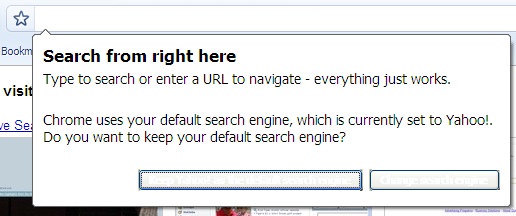
  1. Search within OmniBox (Combined Search & Address Bar) and save time.

  2. Use Voice Search - If you prefer to talk rather than type.  To activate "OK Google" just head to your browser settings and enable "OK Google" search command.  
    This will allow you to speak into Google Search to find what you are looking for. You can say most of these examples in English, French, German, Italian, Japanese, Korean, Russian, Spanish, and Brazilian Portuguese, but some aren't available in every language.
    When you see the microphone, just say, "Ok Google" and whatever you want to search for, just like you would type it. Google should talk back to your with your answer.
  3. Search within specific site - If you or your students are researching a topic and only want to search a specific site, that is possible. You just need to type that site into Omnibox. Ex: great wall of china site:cnn.com
  4. Learn to use Search Operators and Punctuations to get more specific search results - Find all listed here: https://goo.gl/6aP09x  You will want to type these just as you see in the examples.  This will be typed into the Omnibox or search box.  Here are a few to get you started:
    • #  Find popular hashtags for trending topics Ex: #WeAreSCSD1
    • -  When you use a dash before a word or site, it excludes sites with that info from your results.  This is useful for words with multiple meanings, like Jaguar the car brand and jaguar the animal.  Examples: jaguar speed -car or pandas -site:wikipedia.org
    • "  When you put a word or phrase in quotes, the results will only include pages with the same words in the same order as the ones inside the quotes. Only use this if you're looking for an exact word or phrase, otherwise you'll exclude many helpful results by mistake.  Example: "imagine all the people"
    • link  Find pages that link to a certain page.  Example: link:youtube.com
    • info Get information about a web address, including the cached version of the page, similar pages, and pages that link to the site. Example: info:google.com                                                              
  5. Create Custom Google Search - Visit google.com/cse  You can customize what sites will be used when students are researching topics.  


If you would like to learn more about Google Searching:
http://www.powersearchingwithgoogle.com/

Google Chrome Quick Facts:

  • Browse Chrome on computer, tablet, or mobile device across all devices
  • Sign in to your Google account to SYNC Chrome bookmarks, browsing history, extensions, and settings to your devices.
  • Google Search automatically provides recommendations that appear as you type
  • Access many apps and extensions through Chrome Web Store
  • Sync open tabs, bookmarks, and omnibox data from PC to your phone/tablet with a Google account
  • Browse safely with automatic updates, built-in malware protection, and privacy settings